At the excellent Agile on the Beach conference in Cornwall I did a presentation outlining some of the history, design and implementation of cyber-dojo.
The video has just gone live on youtube.

Travis build pipeline
I've been working on the Travis build pipeline for cyber-dojo.
The biggest gotcha I hit was that a failure in an after_success: section of a .travis.yml file does not fail the build. This was an issue because after successfully building and testing a docker image I wanted to do two things (and know if they failed):
push_and_trigger.sh looks like this:
trigger-build.js looks like this:
Note the [set -e] in push_and_trigger.sh and the [process.exit(1)] in trigger-build.js
Hope this proves useful!
- push the docker image to dockerhub
- trigger git repos dependent on the docker image so they in turn run their .travis.yml files.
...
language: node_js
script:
- ...
- curl -O https://raw.githubusercontent.com/cyber-dojo/ruby/master/push_and_trigger.sh
- chmod +x push_and_trigger.sh
- ./push_and_trigger.sh [DEPENDENT-REPO...]
push_and_trigger.sh looks like this:
#!/bin/bash
set -e
...
if [ "${TRAVIS_PULL_REQUEST}" == "false" ]; then
BRANCH=${TRAVIS_BRANCH}
else
BRANCH=${TRAVIS_PULL_REQUEST_BRANCH}
fi
if [ "${BRANCH}" == "master" ]; then
docker login --username "${DOCKER_USERNAME}" --password "${DOCKER_PASSWORD}"
TAG_NAME=$(basename ${TRAVIS_REPO_SLUG})
docker push cyberdojo/${TAG_NAME}
echo "PUSHED cyberdojo/${TAG_NAME} to dockerhub"
npm install travis-ci
script=trigger-build.js
curl -O https://raw.githubusercontent.com/cyber-dojo/ruby/master/${script}
node ${script} ${*}
fi
trigger-build.js looks like this:
...
var Travis = require('travis-ci');
var travis = new Travis({
version: '2.0.0',
headers: { 'User-Agent': 'Travis/1.0' }
});
var exit = function(call,error,response) {
console.error('ERROR:travis.' + call + 'function(error,response) { ...');
console.error(' error:' + error);
console.error('response:' + JSON.stringify(response, null, '\t'));
process.exit(1);
};
travis.authenticate({ github_token: process.env.GITHUB_TOKEN }, function(error,response) {
var repos = process.argv.slice(2);
if (error) { exit('authenticate({...}, ', error, response); }
repos.forEach(function(repo) {
var parts = repo.split('/');
var name = parts[0];
var tag = parts[1];
travis.repos(name, tag).builds.get(function(error,response) {
if (error) { exit('repos(' + name + ',' + tag + ').builds.get(', error, response); }
travis.requests.post({ build_id: response.builds[0].id }, function(error,response) {
if (error) { exit('requests.post({...}, ', error, response); }
console.log(repo + ':' + response.flash[0].notice);
});
});
});
});
Note the [set -e] in push_and_trigger.sh and the [process.exit(1)] in trigger-build.js
Hope this proves useful!
Python + behave
A big thank you to Millard Ellingsworth @millard3 who has added Python+behave to cyber-dojo.


Woohoo :-)
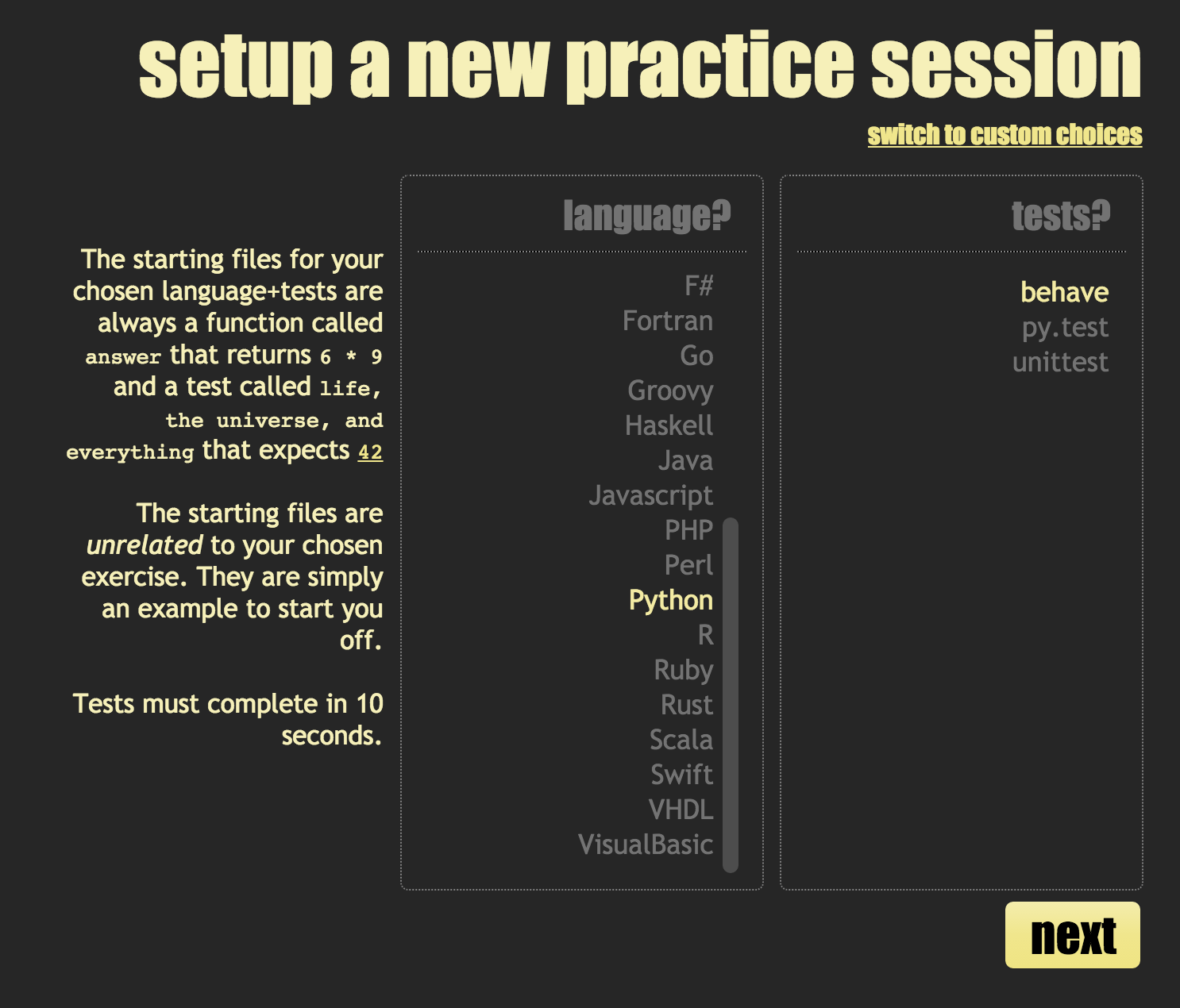

Woohoo :-)
cyber-dojo Raspberry Pies in action

Liam Friel, who helps to run a CoderDojoBray (in Ireland) asked me for some Raspberry Pies which I was more than happy to give him, paid for from the donations lots of you generous people have made from cyber-dojo.
Liam sent me this wonderful photo of a CoderDojoBray session and writes:
Your Raspberry Pies have been getting a lot of use... We've got 8 Pies in total. Got a reasonably steady turnout at the dojo, 75-85 kids turning up each week.
Awesome. If, like Liam, you would like some Raspberry Pies to help kids learn about coding, please email. Thanks
running your own cyber-dojo Docker server on Windows
These instructions are intended for individuals wishing to run cyber-dojo locally on their Windows laptop.
Note that these instructions are for running Docker-Toolbox for Windows.
Running Docker Desktop for Windows may or may not work.


You need to set the correct permissions for this directory.
The user-id for the saver service is 19663, and its group-id is 65533.
In the cyber-dojo server terminal, type:
Now use this cyber-dojo script, from a (default VM) cyber-dojo server terminal, to run your own cyber-dojo server.
Note that these instructions are for running Docker-Toolbox for Windows.
Running Docker Desktop for Windows may or may not work.
install Docker-Toolbox for Windows
From here.
open a Docker-Quickstart-Terminal
get your cyber-dojo server's IP address
In the Docker-Quickstart-Terminal, type:$ docker-machine ip default
It will print something like 192.168.99.100
ssh into your cyber-dojo server
In the Docker-Quickstart-Terminal, type:$ docker-machine ssh default
setup directory permissions
cyber-dojo saves the practice sessions to /cyber-dojoYou need to set the correct permissions for this directory.
The user-id for the saver service is 19663, and its group-id is 65533.
In the cyber-dojo server terminal, type:
docker@default:~$ sudo mkdir /cyber-dojo
docker@default:~$ sudo chown 19663:65533 /cyber-dojo
install the cyber-dojo script
In the cyber-dojo server terminal, type:docker@default:~$ curl -O https://raw.githubusercontent.com/cyber-dojo/commander/master/cyber-dojo
docker@default:~$ chmod 700 cyber-dojo
Now use this cyber-dojo script, from a (default VM) cyber-dojo server terminal, to run your own cyber-dojo server.
running your own cyber-dojo Docker server on a Mac
For people wishing to run cyber-dojo locally on their Mac laptop.
- install Docker-Desktop for Mac, from here.
- install the cyber-dojo script - in a terminal, type:
$ curl -O https://raw.githubusercontent.com/cyber-dojo/commander/master/cyber-dojo $ chmod 700 cyber-dojo
- Use this cyber-dojo script to run your own cyber-dojo server.
running your own cyber-dojo Docker server on Linux
install docker
If docker is not already installed, install it.- To install manually, follow the instructions on the docker website.
- To install with a script (via curl):
$ curl -sSL https://get.docker.com/ | sh - To install with a script (via wget):
$ wget -qO- https://get.docker.com/ | sh
add your user to the docker group
Eg, something like$ sudo usermod -aG docker $USER
log out and log in again
You need to do this for the previous usermod to take effect.setup directory permissions
cyber-dojo saves the practice sessions to /cyber-dojoYou need to set the correct permissions for this directory.
The user-id for the saver service is 19663, and its group-id is 65533.
In a terminal, type:
$ sudo mkdir /cyber-dojo
$ sudo chown 19663:65533 /cyber-dojo
install the cyber-dojo shell script
In a terminal, type:$ curl -O https://raw.githubusercontent.com/cyber-dojo/commander/master/cyber-dojo
$ chmod 700 cyber-dojo
Now use this cyber-dojo script to run your own cyber-dojo server.
Subscribe to:
Posts (Atom)